---
title: MCP Server
sidebar_label: MCP Server
description: Connect AI agents and coding assistants to the Partner APIs and this documentation through the MCP server.
---
import Tabs from '@theme/Tabs';
import TabItem from '@theme/TabItem';
import McpSupport, { McpBrand, McpGatewayUrl, McpScope, McpServerName, McpSnippet } from '_core/components/McpSupport';
import sidebars from '../../sidebars';
# MCP Server
The Model Context Protocol (MCP) server lets AI agents and coding assistants work with Partner APIs and search this documentation. Connect any MCP-compatible client to the gateway, and the agent can discover services, read data, and — when you allow it — make changes on your behalf.
## Connect your client
Add the gateway to your client as a custom MCP server: copy each command below and paste it as-is. Then sign in when your browser opens (see [Authentication](#authentication)).
The commands register the server as ****. That's only a label your client shows. Keep it, or replace it with any name you like, everywhere it appears.
1. Paste this into your terminal to add the server:
2. Paste this into your terminal to start Claude Code:
3. Paste this into the Claude Code prompt, then pick **** and choose **Authenticate**:
1. Paste this into your terminal to add the server:
2. If your browser didn't open to sign in, paste this into your terminal:
1. Open **Cursor Settings → Tools & MCP** and click **New MCP Server** (or **Add Custom MCP**). Cursor opens `~/.cursor/mcp.json`.
2. Paste this into the file and save. If the file already lists servers, paste only the **** entry inside `mcpServers`:
3. Back in **Tools & MCP**, click **Connect** (or **Needs login**) next to ****.
## Authentication
The MCP server uses your Partners sign-in, so there are no API keys to copy. The agent can only reach the project you pick, with the permissions you approve.
1. **Sign in.** Your client opens `oauth.noon.partners` in your browser. Sign in with your Partners account.
2. **Choose permissions, then click Authorize.**
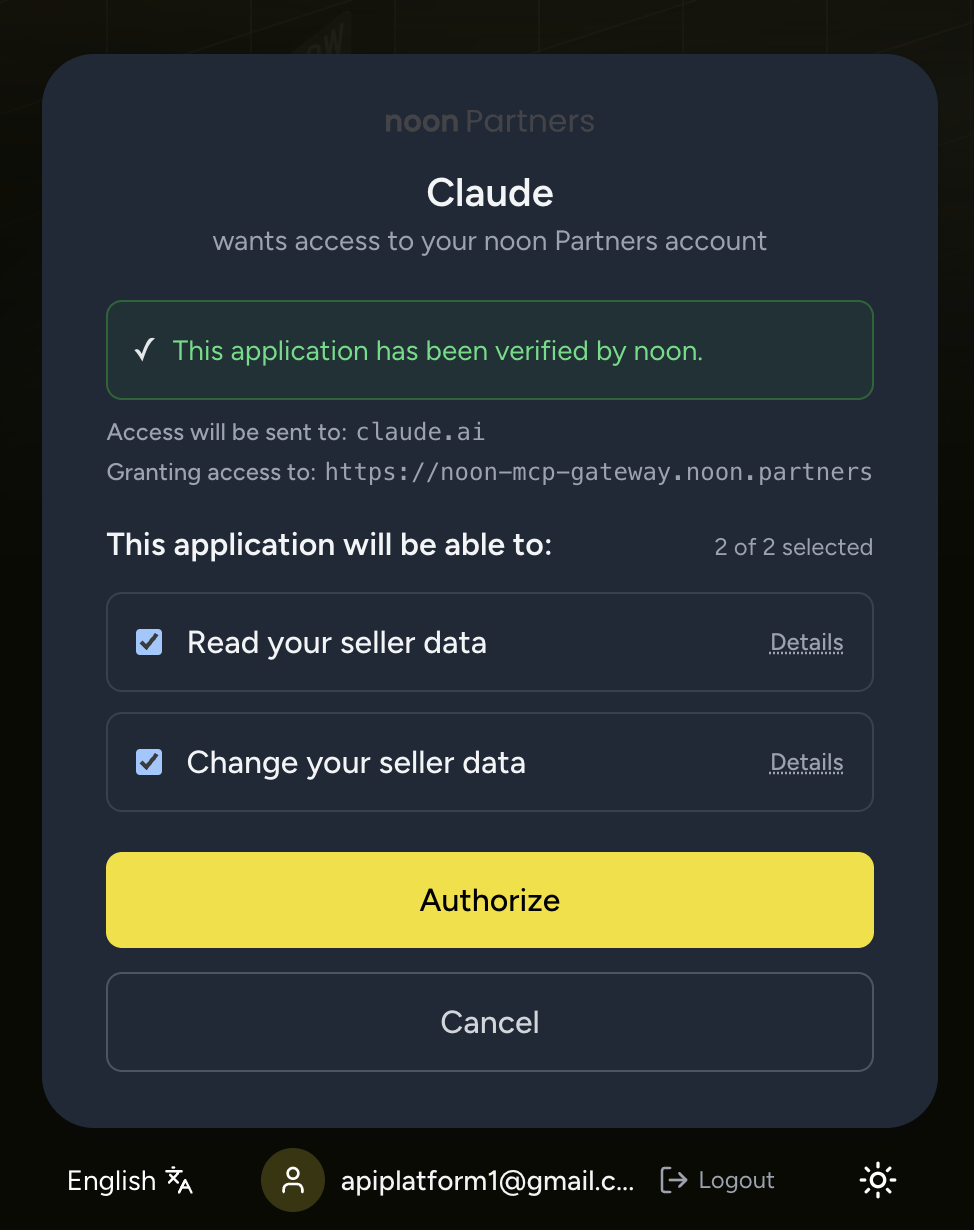 | On screen | Scope | Lets the agent |
|---|---|---|
| **Read your seller data** | | List services and APIs, and call **Read** APIs (`execute_api_read`). Never changes data. |
| **Change your seller data** | | Call **Write** APIs (`execute_api_write`) that create, update or delete data, such as prices and stock. |
:::danger
Keep both ticked for full access, or untick **Change your seller data** for read-only. Always keep **Read your seller data** ticked: write access doesn't include it.
:::
3. **Confirm the project.** Check that **Selected Project** is the one the agent should work in, then click **Confirm & Authorize**.
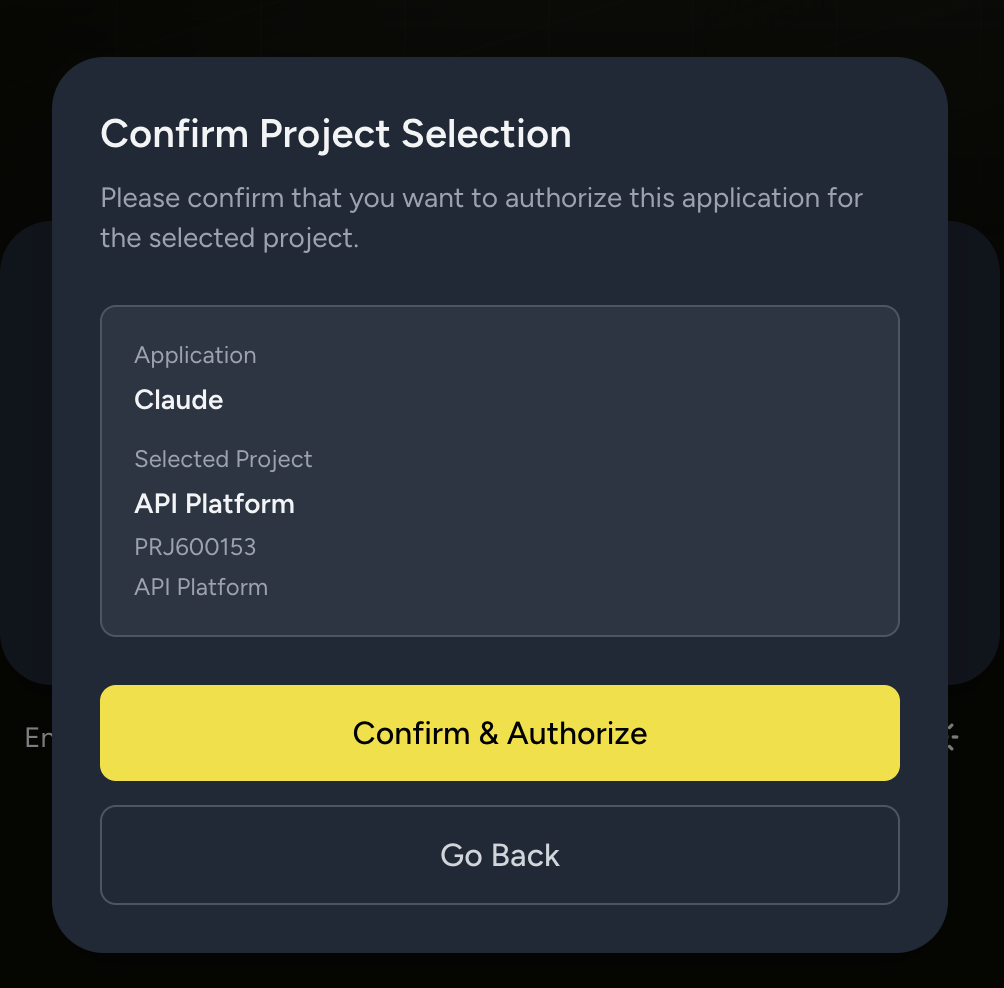 4. **Return to your client.** The server shows as connected and its tools are ready.
### Revoke access
1. Open [OAuth → Connected apps][partner-oauth-apps] in Partners.
2. Find the app (for example **Claude**) and click **Revoke**.
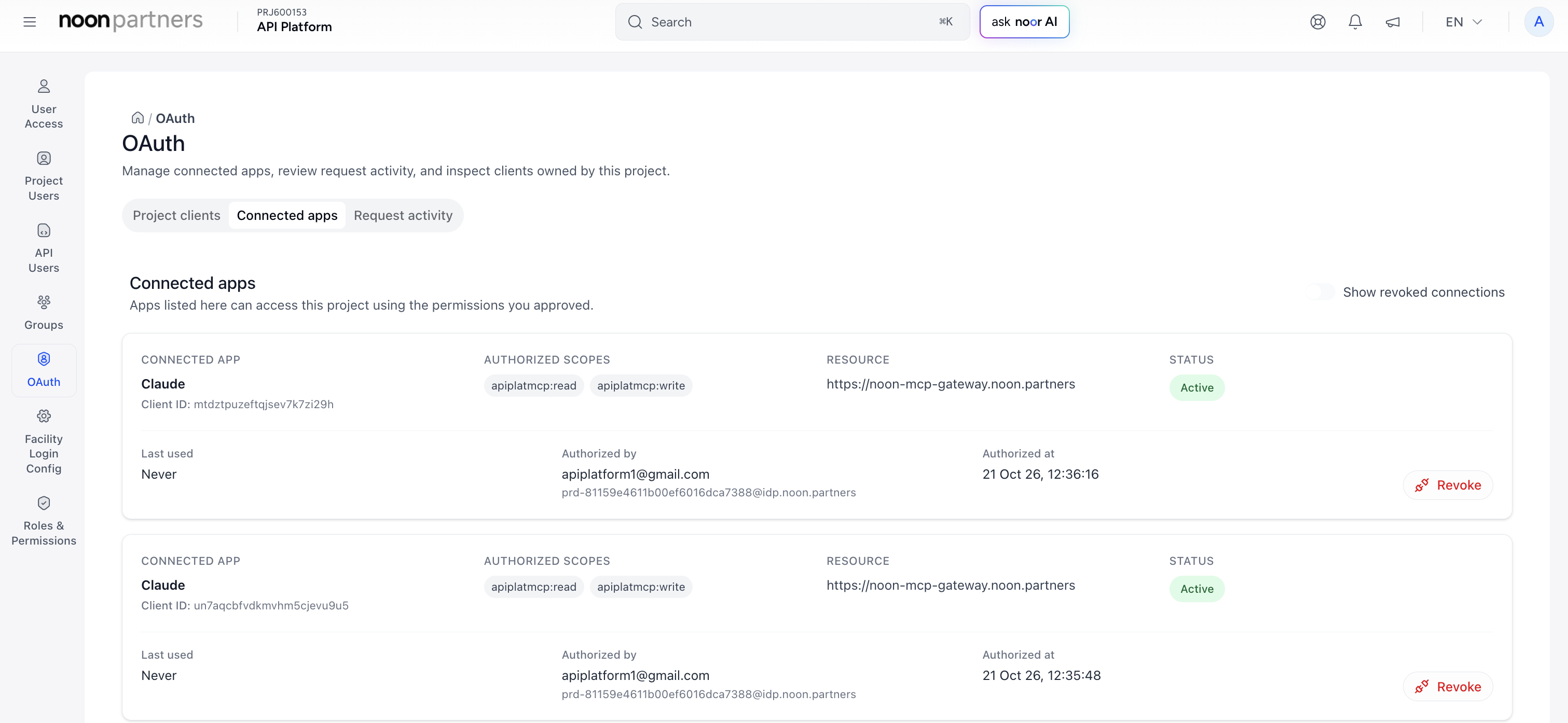 3. Click **Revoke access** to confirm.
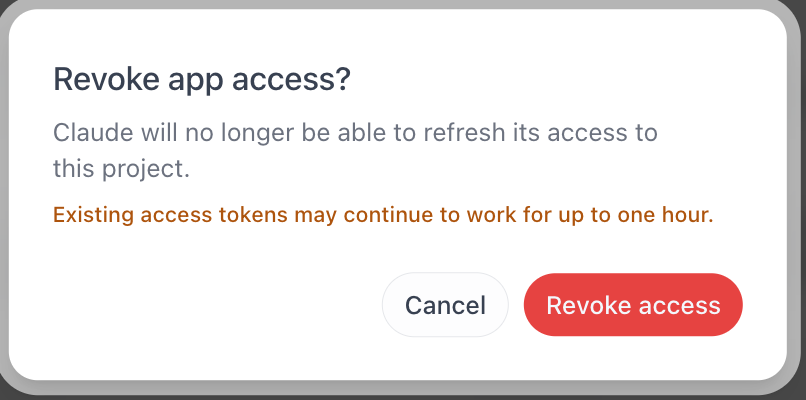 The app can't refresh its access after that, but a token it already holds can keep working for up to one hour.
## Tools
The server exposes five tools. Agents usually call them in order: discover a service, list its APIs, then execute one.
| Tool | Type | What it does |
|------|------|--------------|
| `get_services`
Get services | Discovery | Lists every API service the MCP server exposes. |
| `get_apis_for_service`
Get APIs for service | Discovery | Lists the APIs available in one service, including whether each is read or write. |
| `execute_api_read`
Execute API read | Read | Calls any API marked as Read. Never changes data. |
| `execute_api_write`
Execute API write | Write | Calls any API marked as Write. Creates, updates or deletes data. |
| `search_docs`
Search docs | Docs | Asks the docs AI assistant (Ask AI) a question and returns the answer with sources. |
## Using the server
Once connected, ask your agent in plain language. It picks the right tool and API on its own.
| Ask your agent | What it does |
|---|---|
| *"Which services can you access?"* | `get_services` lists the services you can use. |
| *"What APIs does the pricing service have?"* | `get_apis_for_service` lists them, each marked Read or Write. |
| *"Show me the current price of my SKU ABC123."* | Finds the right API, then calls it with `execute_api_read`. No data changes. |
| *"Set the price of SKU ABC123 to 99 AED."* | Finds the right API, then calls it with `execute_api_write`. This changes live data. Check the call before you approve it. |
| *"How do I get API credentials?"* | `search_docs` answers from this documentation, with links to the sources. |
If the agent says a tool needs a scope it doesn't have, revoke the app (see [Revoke access](#revoke-access)) and connect again with the permission ticked.
## Supported APIs
These are the APIs available through MCP, grouped by service. Each is either a **Read** API, called with `execute_api_read`, or a **Write** API, called with `execute_api_write`, and links to its page in the API Reference, where the same label appears under the endpoint URL. APIs that aren't listed here can't be called over MCP.