noon MCP Server
The noon Model Context Protocol (MCP) server lets AI agents and coding assistants work with noon Partner APIs and search this documentation. Connect any MCP-compatible client to the gateway, and the agent can discover services, read data, and — when you allow it — make changes on your behalf.
https://noon-mcp-gateway.noon.partners/mcpConnect your client
Add the gateway to your client as a custom MCP server: copy each command below and paste it as-is. Then sign in when your browser opens (see Authentication).
The commands register the server as noon-partners. That's only a label your client shows. Keep it, or replace it with any name you like, everywhere it appears.
- Claude Code
- Codex
- Cursor
-
Paste this into your terminal to add the server:
claude mcp add --transport http --scope user noon-partners https://noon-mcp-gateway.noon.partners/mcp -
Paste this into your terminal to start Claude Code:
claude -
Paste this into the Claude Code prompt, then pick noon-partners and choose Authenticate:
/mcp
-
Paste this into your terminal to add the server:
codex mcp add noon-partners --url https://noon-mcp-gateway.noon.partners/mcp -
If your browser didn't open to sign in, paste this into your terminal:
codex mcp login noon-partners
-
Open Cursor Settings → Tools & MCP and click New MCP Server (or Add Custom MCP). Cursor opens
~/.cursor/mcp.json. -
Paste this into the file and save. If the file already lists servers, paste only the noon-partners entry inside
mcpServers:~/.cursor/mcp.json{
"mcpServers": {
"noon-partners": {
"url": "https://noon-mcp-gateway.noon.partners/mcp"
}
}
} -
Back in Tools & MCP, click Connect (or Needs login) next to noon-partners.
Authentication
The MCP server uses your noon Partners sign-in, so there are no API keys to copy. The agent can only reach the project you pick, with the permissions you approve.
-
Sign in. Your client opens
oauth.noon.partnersin your browser. Sign in with your noon Partners account. -
Choose permissions, then click Authorize.
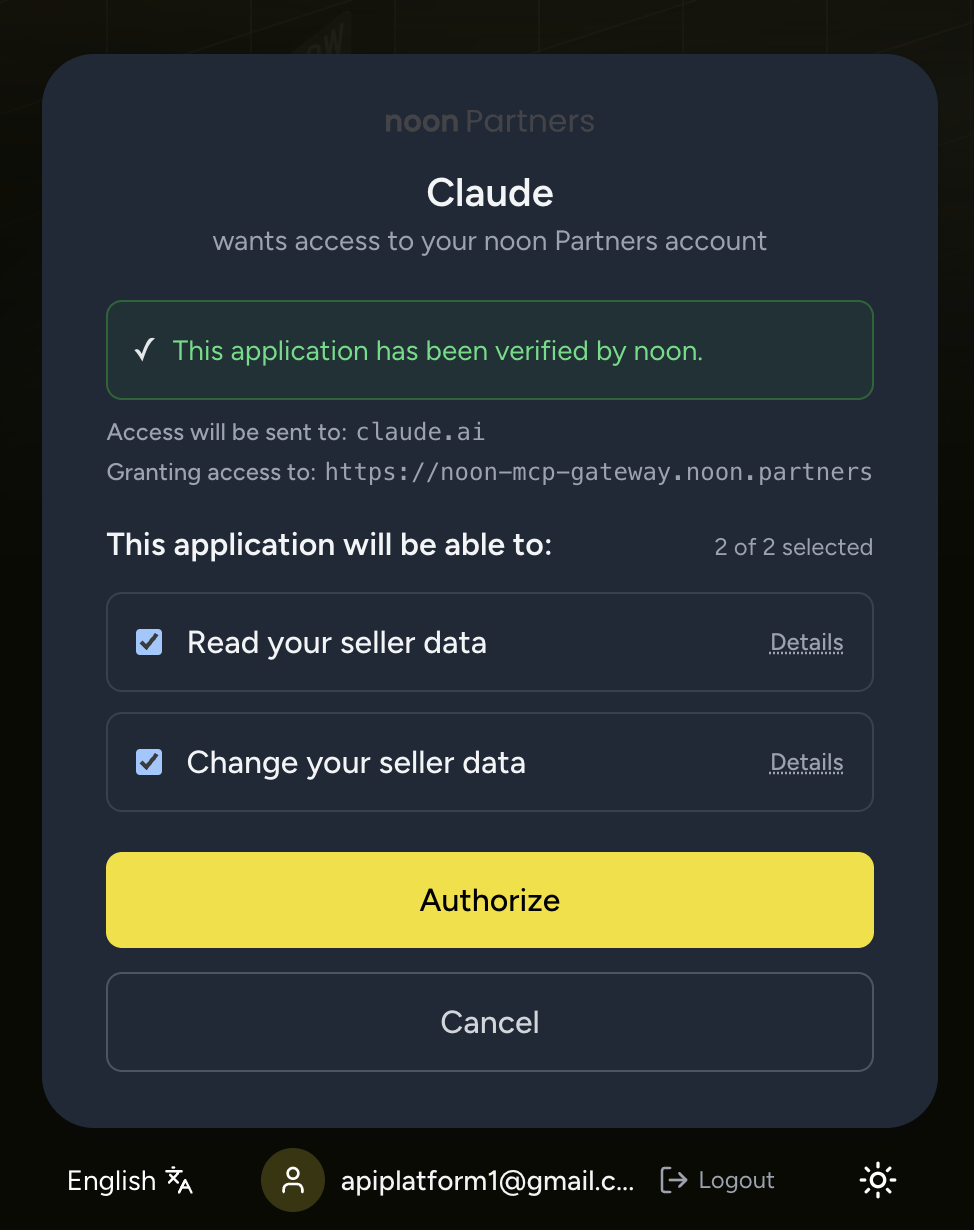
On screen Scope Lets the agent Read your seller data apiplatmcp:readList services and APIs, and call Read APIs ( execute_api_read). Never changes data.Change your seller data apiplatmcp:writeCall Write APIs ( execute_api_write) that create, update or delete data, such as prices and stock.dangerKeep both ticked for full access, or untick Change your seller data for read-only. Always keep Read your seller data ticked: write access doesn't include it.
-
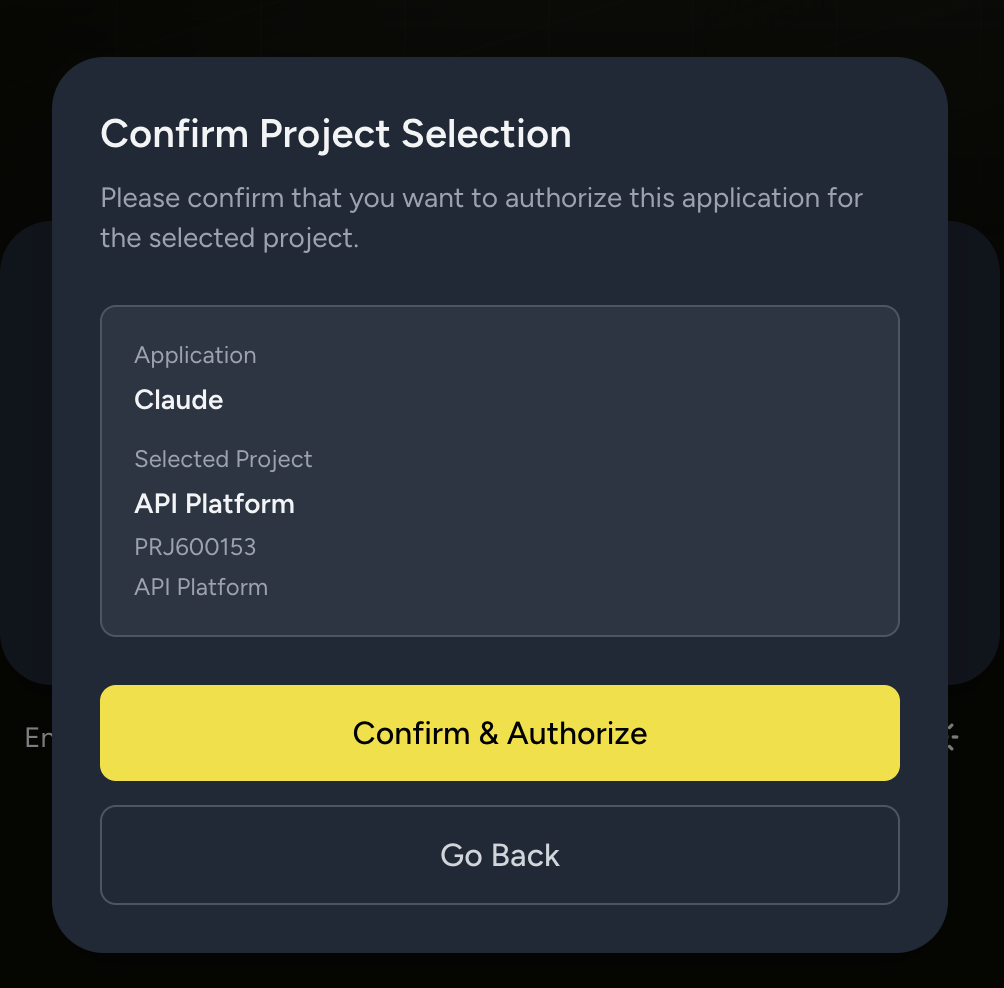
Confirm the project. Check that Selected Project is the one the agent should work in, then click Confirm & Authorize.
-
Return to your client. The server shows as connected and its tools are ready.
Revoke access
-
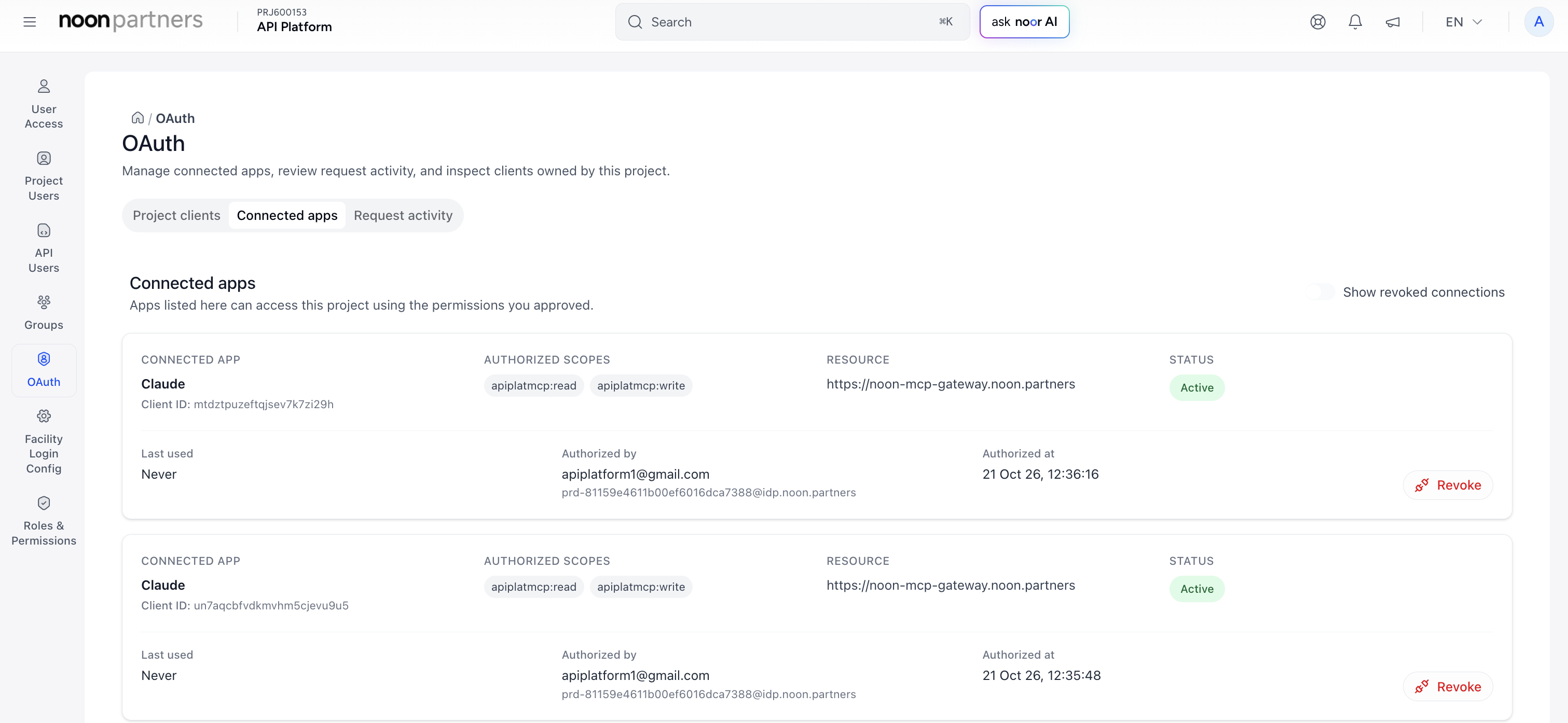
Open OAuth → Connected apps in noon Partners.
-
Find the app (for example Claude) and click Revoke.
-
Click Revoke access to confirm.
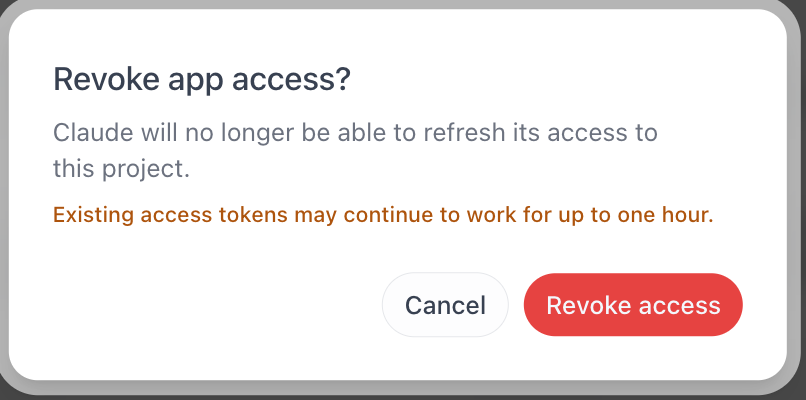
The app can't refresh its access after that, but a token it already holds can keep working for up to one hour.
Tools
The server exposes five tools. Agents usually call them in order: discover a service, list its APIs, then execute one.
| Tool | Type | What it does |
|---|---|---|
get_servicesGet services | Discovery | Lists every API service the MCP server exposes. |
get_apis_for_serviceGet APIs for service | Discovery | Lists the APIs available in one service, including whether each is read or write. |
execute_api_readExecute API read | Read | Calls any API marked as Read. Never changes data. |
execute_api_writeExecute API write | Write | Calls any API marked as Write. Creates, updates or deletes data. |
search_docsSearch docs | Docs | Asks the docs AI assistant (Ask AI) a question and returns the answer with sources. |
Using the server
Once connected, ask your agent in plain language. It picks the right tool and API on its own.
| Ask your agent | What it does |
|---|---|
| "Which noon services can you access?" | get_services lists the services you can use. |
| "What APIs does the pricing service have?" | get_apis_for_service lists them, each marked Read or Write. |
| "Show me the current price of my SKU ABC123." | Finds the right API, then calls it with execute_api_read. No data changes. |
| "Set the price of SKU ABC123 to 99 AED." | Finds the right API, then calls it with execute_api_write. This changes live data. Check the call before you approve it. |
| "How do I get API credentials?" | search_docs answers from this documentation, with links to the sources. |
If the agent says a tool needs a scope it doesn't have, revoke the app (see Revoke access) and connect again with the permission ticked.
Supported APIs
These are the APIs available through MCP, grouped by service. Each is either a Read API, called with execute_api_read, or a Write API, called with execute_api_write, and links to its page in the API Reference, where the same label appears under the endpoint URL. APIs that aren't listed here can't be called over MCP.
| API | MCP access |
|---|---|
| postBatchUpsertProduct | Write |
| postBatchUpsertTransferPrice | Write |
| postBatchGetTransferPrice | Read |
| API | MCP access |
|---|---|
| postBatchGetPricing | Read |
| postBatchUpsertPricing | Write |
| API | MCP access |
|---|---|
| postGetStock | Read |
| postUpdateStock | Write |
| API | MCP access |
|---|---|
| postListWarehouses | Read |
| API | MCP access |
|---|---|
| postCreateHttpsDestination | Write |
| getGetDestination | Read |
| getListDestinations | Read |
| postUpdateDestination | Write |
| getListEventTypes | Read |
| API | MCP access |
|---|---|
| postListCategories | Read |
| postListCategoryAttributes | Read |
| postUpsertProduct | Write |
| postGetContent | Read |
| postGetProductGroup | Read |
| postUpsertProductGroup | Write |
| postDeleteProductGroup | Write |